BMCU Burning Tutorial(UART)
Warning
Prior to programming, ensure that.All solder joints are properly finished,No power supply short circuits exist
Important Notes Before Flashing
Version Compatibility
- Before October: Old version BMCU with dual buffering required different firmware versions; using with P series required flashing firmware
- After October: Upgraded dual-microswitch version can be directly plugged in and automatically recognized
However, the P series with external five-way control requires flashing firmware version 1.08
Prerequisites
Tools and Software Required
- Dupont wires - To connect the programmer and BMCU mainboard
- USB to UART adapter - Need to bring your own
- Computer - Windows PC recommended
- Software: WCHISPTool - Download
Flashing Steps
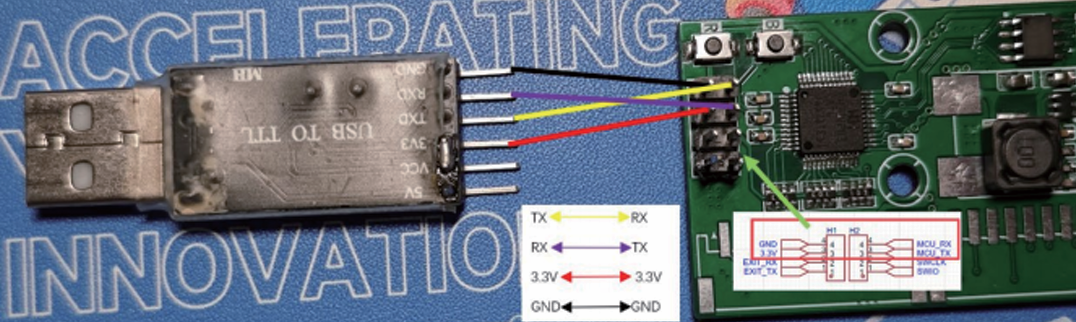
Step 1: Hardware Connection
⚠️ IMPORTANT: Ensure BMCU is NOT connected to the printer!
Connect the BMCU mainboard and USB-UART tool according to the following wiring:
Step 2: Install Driver
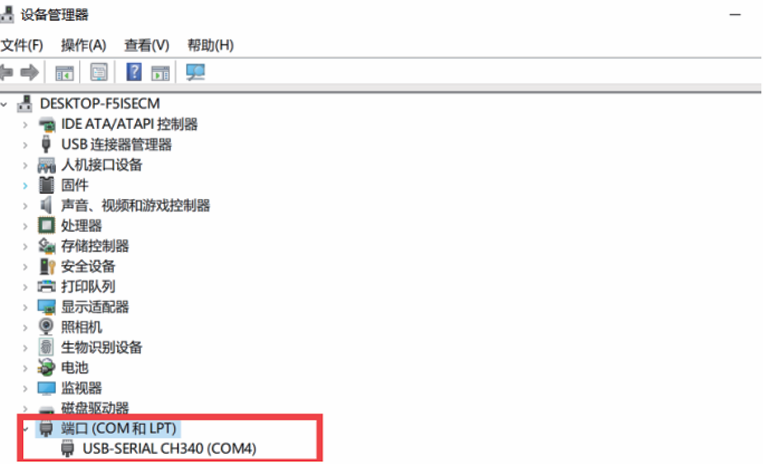
- Connect the USB-to-UART tool to your computer
- The system should automatically detect the serial port
- Note your specific COM port number (may differ from examples)
- Use the actual port assigned to your device
Step 3: Enter Programming Mode
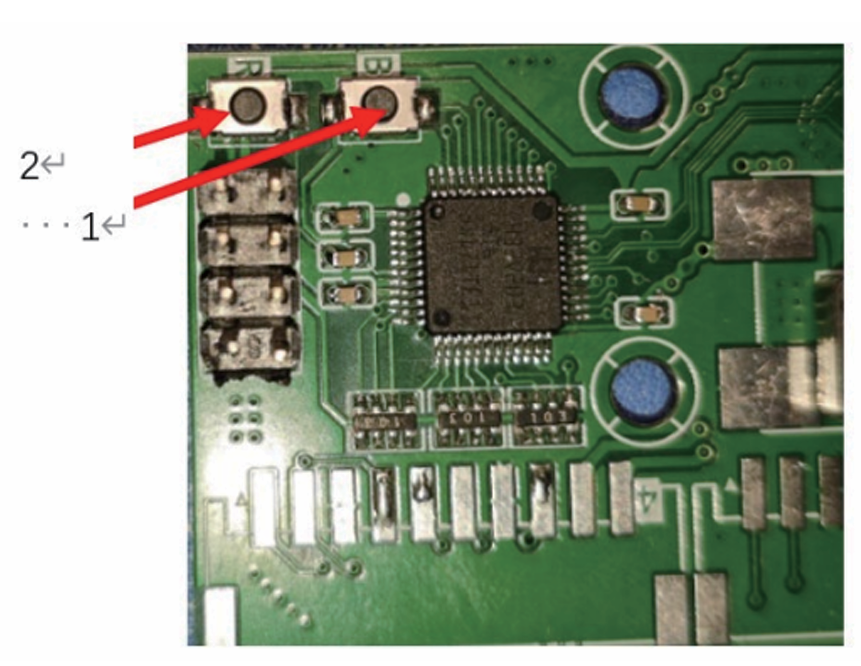
- Press and hold the B button with your left hand (do not release)
- Press the R button once with your right hand and release
- Keep holding the B button (it's best not to release it)
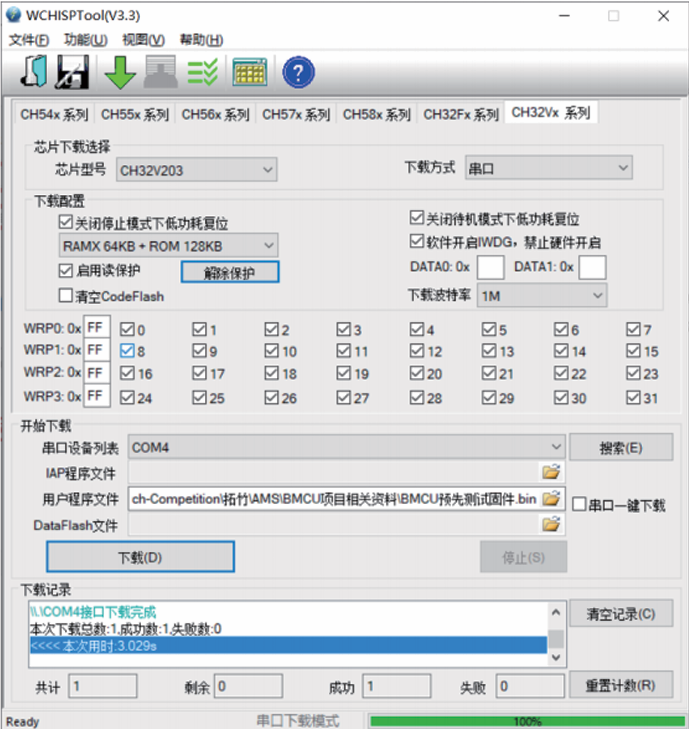
Step 4: Configure WCHISPTool
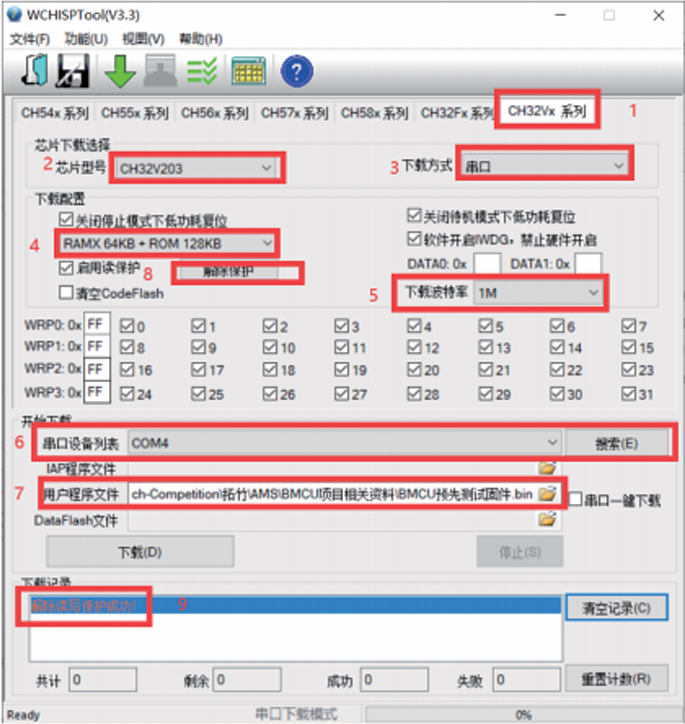
- Open WCHISPTool software
- select the corresponding MCU series, model,download method
- Check the download configuration
- Wait for the message: "(Read/write protection unlocked successfully!)"
Step 5: Flash Firmware
- Click the "Download" button
- Wait patiently for the process to complete
If download fails:
- Try selecting baud rate of 115200
- Check Dupont wire connections
- Note: The "Contact Protection" button must be clicked for each download attempt
Step 6: Verify Success
- Press the R button at this point
- The red LED on the BMCU mainboard will illuminate
- This indicates successful program burning!